

Windows Switcher is a keyboard shortcut to switch between different open windows and it is also known as Flip 3D. The command for using Windows switcher is Windows Key +Tab or CTRL + Win Key +Tab (to scroll through the list). With Vista, there was an shortcut in the quick launch area for easily accessing switcher. With the launch of Windows 7, the concept of quick launch was removed and gave way for new taskbar. Even though the keyboard shortcuts work in Windows 7, you can also create a switcher item in Windows 7 taskbar for easy access.

In Windows 7, switcher is already present and you can easily add it to Windows 7 taskbar. To enable switcher on Windows7 taskbar, first right click on the desktop and select New-> shortcut.
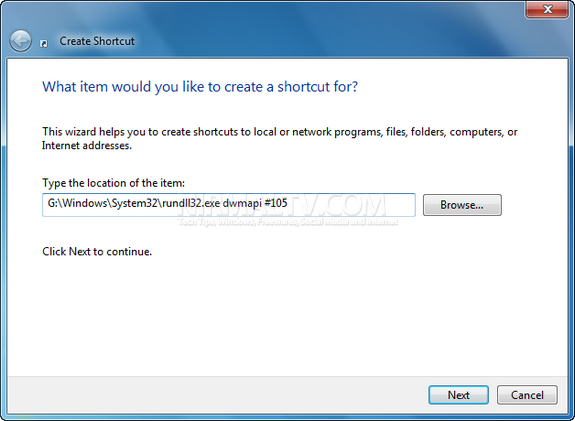
In the location type C:WindowsSystem32rundll32.exe dwmapi #105, where C is the drive where Windows 7 is installed. In the next step, name the shortcut as Windows Switcher.
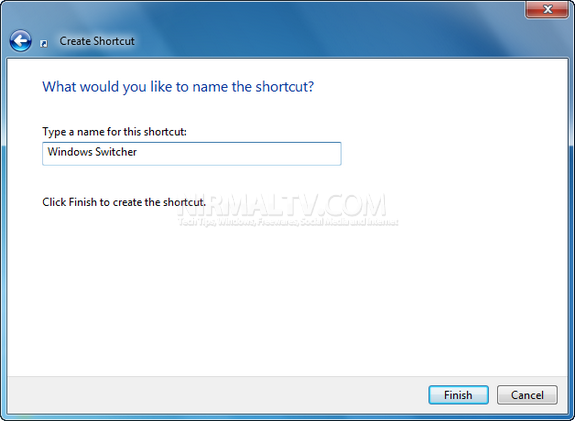
Click finish and you will have the shortcut created on desktop. Right click on the shortcut and select properties. Next click on Change icon. You can browse for the switcher icon from here- %SYSTEMROOT%system32imageres.dll. Once you have changed the icon, right click and select Pin to taskbar. You will now have Windows Switcher in the taskbar.
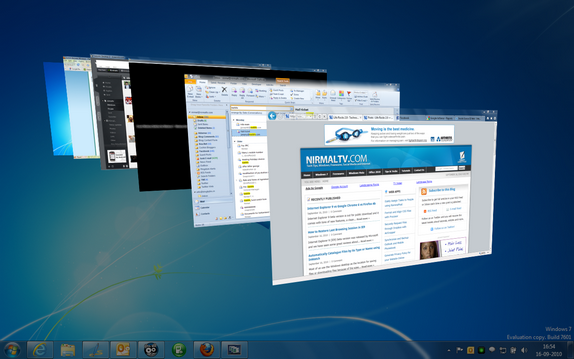
Alternatively you can download this shortcut and pin to taskbar easily.



Thanks for the tip
The correct path is:
C:\Windows\System32\rundll32.exe dwmapi #105
Can’t find %SYSTEMROOT%system32imageres.dll on my W7 64-bit Home Premium