

Microsoft has released the beta version of Windows 7 Service Pack 1, it is now available for download. Although SP1 does not come with any major changes, it does fix lots of issues and bugs found in Windows 7. So it is always recommended to install service packs. If you are a Windows 7 user and want to try out Service pack 1, here are detailed step by step process on installing service pack 1 on Windows 7.

When you download Windows 7 SP1, it comes as an ISO package, you can either burn it to a DVD or extract it using tools like WinRAR. Once you have extracted, double click the file setup.exe found in the package. It is recommended that you save all your work before trying to install as reboot might be required during the set up.
![windows 7 SP1[3]](https://cdn.nirmaltv.com/images/windows7SP13.png "windows 7 SP1[3]")
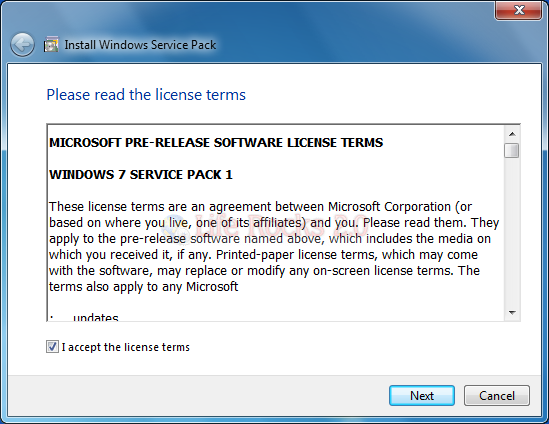
Click next and accept the license terms.
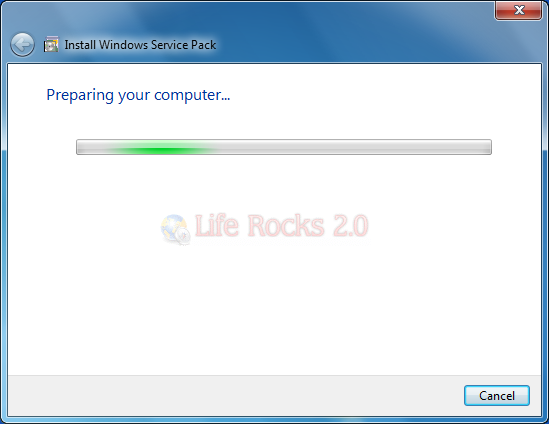
The set up will prepare you computer for installing SP1, this might take few minutes.
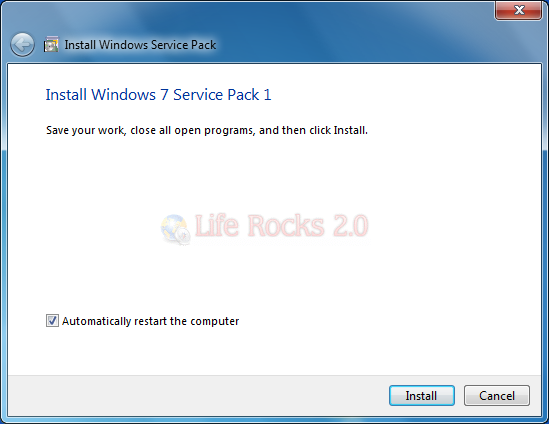
In the next step, you can either do manual reboot or ask the set up to automatically reboot wherever needed. Click on Install button.
Set up will create a system restore point in case you want to revert it back.
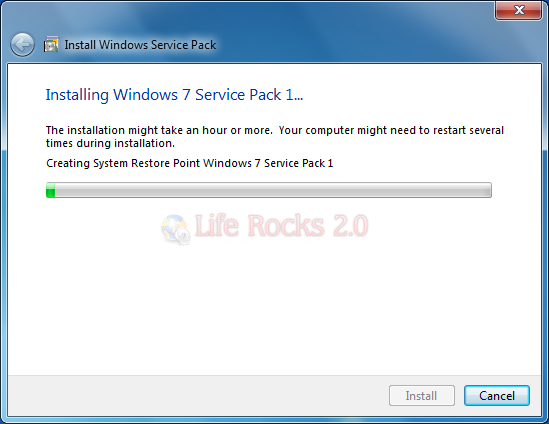
Next step Windows 7 SP1 installation will start and this might take several minutes to install.
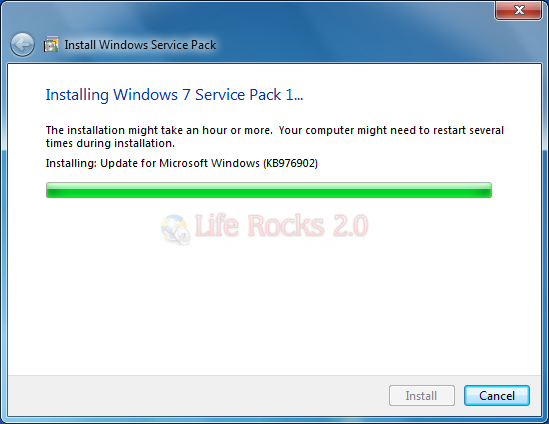
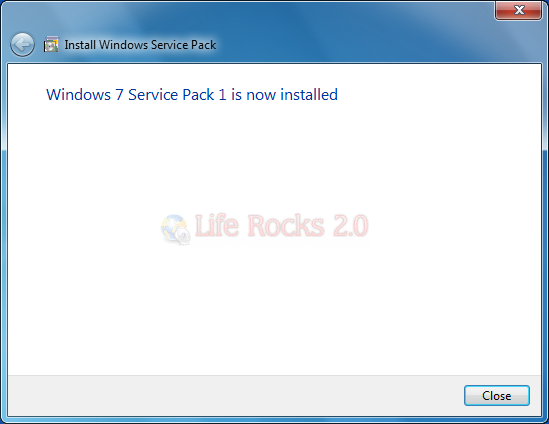
Finally when service pack is installed (several reboots might be required), you get the confirmation that SP1 is installed.
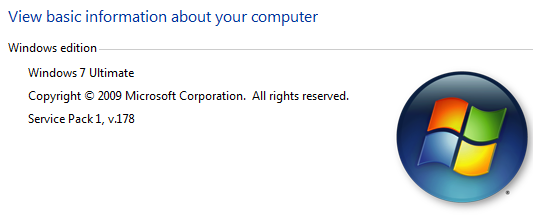
Now if you open the system properties, you can see that SP1 installed.
If you are facing any issues installing SP1 on your Windows 7, please let us know in comments.



Installed sp1 beta on my 32 bit win7 installation via microsoft update with no problem.. On my 64 bit machine it has failed twice, even after running the system update tool from MS and turning off my firewall and antivirus. At the very end, when 99% configured, an error message appears saying “failure to configure service pack, reverting changes”. It then takes about 20 min. to restore to win7 without the sp changes.
I just got the same exact results as Jeff. Attempting to install SP1 on Windows 7 Enterprise x64 on a Thinkpad T61p… Go Microsoft!
Instalation failed, reboot and try again… the i reboot, and get the same dialog….