YouTube has previously made it more dynamic and easier to customize the channel pages. If you have uploaded videos to YouTube, you can have a customized look to your channel with colors and background images. The best part of customizations is that you dont need to be a pro in designing the channels. The CSS editing is made so easy that you just need to specify the colors and background images.

How to Customize Channels?
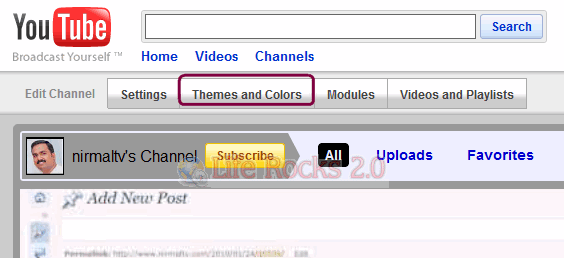
To Customize channels, log into YouTube and click your channel name. You can also start editing by clicking the Edit Channel options in the account settings page as well. Open the Channel design tab and click the Themes and Colors option.
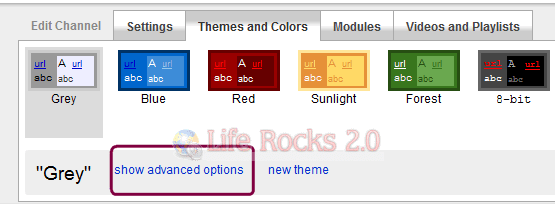
In the themes and colors option, click on the Show Advanced options or you can even click new theme.
This will open up theme settings where you can chose the colors, images etc.
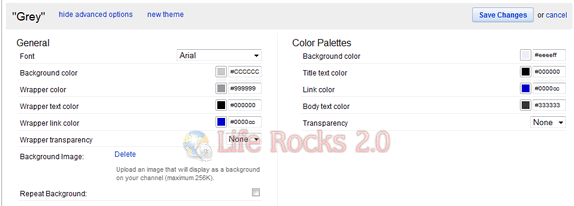
Once you are done with the customizations you can save the theme and this will reflect on your channel page. You can use a background image for your channel (maximum 256k size).
If you not sure of the color combinations, MyTubeDesign website feature some great looking channel themes which can be downloaded with the background image.
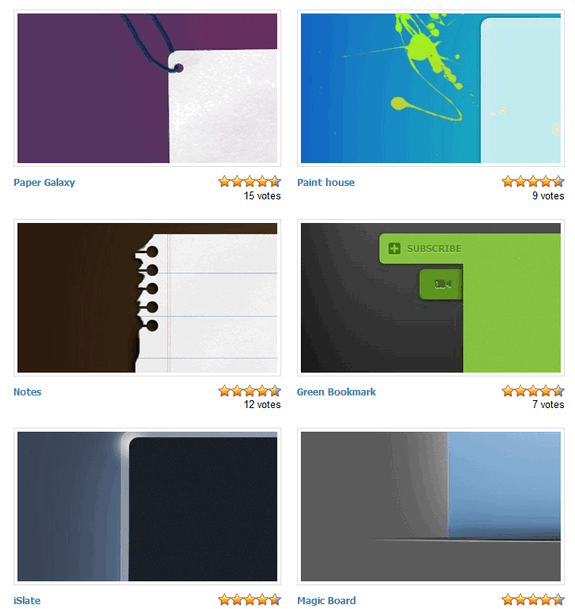
You can download these themes from here.