Windows Live Mail is one of the best free email clients available and it comes with lots of features and has more or less the same basic features of Outlook. Windows Live Mail comes bundled with Windows Live suite of applications. Similar to the signature feature in Outlook, Windows Live Mail also supports adding of your custom signatures to all mails.

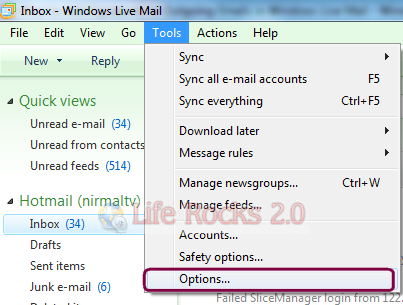
1. To Configure Signatures in Windows Live Mail, open your inbox and click on the Tools menu and select Options.
2. Select the Signatures tab in the options window and click New to add a new signature. You can type in the signature below in the Edit Signature. Make sure to check the box at the top indicating whether to add this signature to all outgoing emails.
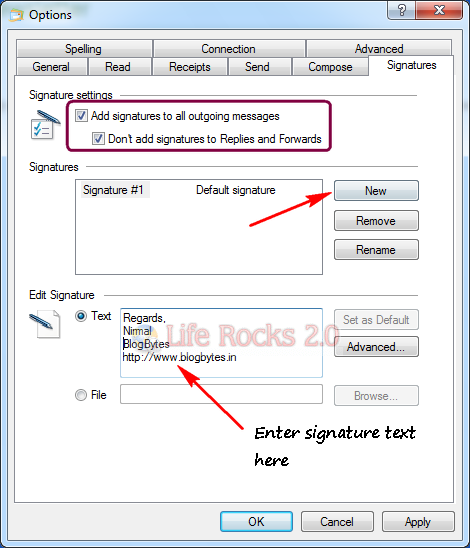
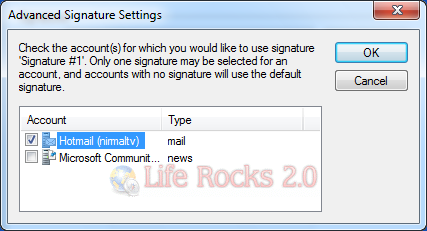
3. Click on the Advanced button and select the account for which signature needs to the added.
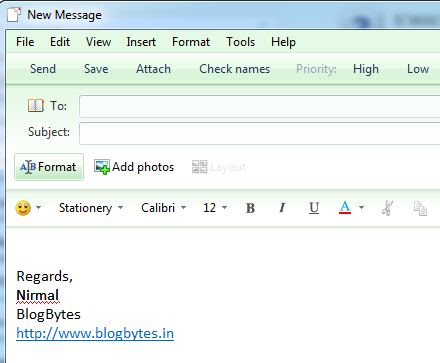
4. Once completed, you can check the signature by clicking on the new email button.
Related: Install and Configure Windows Live Mail on Windows 7