

Hibernation in Windows is the process of saving memory and device context on the disk. Hibernation helps extend usable battery life on mobile PCs by saving the user’s open programs and documents on the disk and powering off the computer. Windows supports hibernation by copying the contents of memory to disk. The system compresses memory contents before preserving them on the disk, which reduces the required disk space to less than the total amount of physical memory on the system.

Hiberfil.sys file is used to reserves disk space for hibernate in Windows. For Windows 7, the default size of the hibernation file is 75 percent of the total physical memory on the system. For example, if your PC has a 2 GB of RAM, the default hibernation file size is 1.5 GB. If you feel that the size of hibernation file is less than or more than required, you can always change the default file size set for hibernation.
To change the hibernation file size follow the steps below;
1. Open the Command prompt in Administrator mode.
2. PowerCfg utility is used to change the hibernation file size. In the command prompt, type PowerCfg.exe /HIBERNATE /SIZE percentage, where HIBERNATE and SIZE are PowerCfg parameters and you need to specify the percetage. For example if you want to set the file size as 75%, use the command PowerCfg.exe /HIBERNATE /SIZE 75.
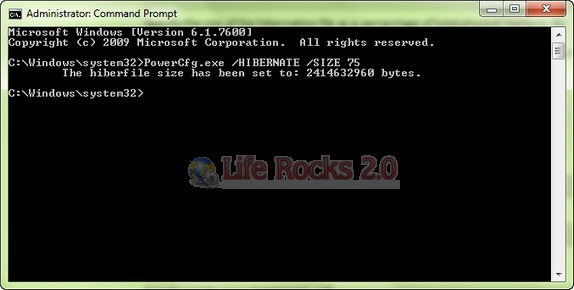
You can change this value to any percentage based on your usage. If you are not using the hibernation feature, you can also turn it off. To disable hibernate for the system, use the /HIBERNATE parameter with the “off” value: PowerCfg.exe /HIBERNATE off.


Windows 7, heck Windows in general, is and will continue to be a great operating system. What other company besides Microsoft lets you easily create applications for free. Sure, you can’t sell your Visual Studio 2008 Express apps but you sure can give them away for free.
Neither MAC or Linux can provide really easy application development like Microsoft can for Windows.
Windows will continue to dominate because it simply provides more.
Great post, I didn’t realise you could set a percentage on the Hiberfile.. It’s amazing how long these seemingly obvious features take to appear though..
In reponse to the previous commenter:
Although I agree, there are two things worth saying.
1 This is not the place for such a comment, what has your comment got to do with this post?
2 Mac users and Linux users mostly like to believe that their system is superior and know little about windows generally. But who cares? let them believe whatever they want, there’s no point in reasoning with biggots.
I’ve been trying this and it seems that there is a limit to the minimum setting. It will only go as low as 50% of the physical ram, even if you try to set it to 25%.