

Having WordPress installed on your local machine (Windows) has many advantages as you can test your theme locally before uploading or if you want to release a plugin, you can install on local machine and test it. The traditional method of installing WordPress is by downloading XAMPP for Windows and then configuring MySQL. With Microsoft Web Platform Installer, you can install WordPress quickly and easily without having any knowledge of configuring MySQL. It is similar to installing any application on Windows.
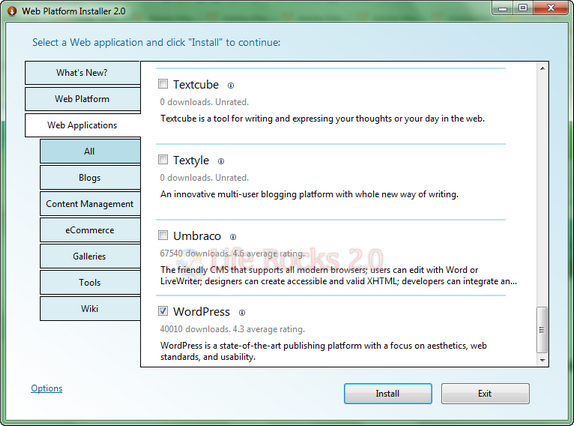
After downloading the Web Installer, open the Web Applications tab and select WordPress (located inside blogs). Select the box against WordPress and then click install.
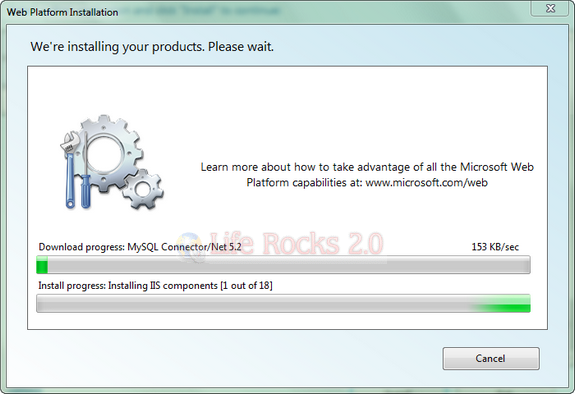
The installer will download the necessary files from web. Once the files are downloaded, the installer will install WordPress locally. Based on your Internet speed, download might take time.
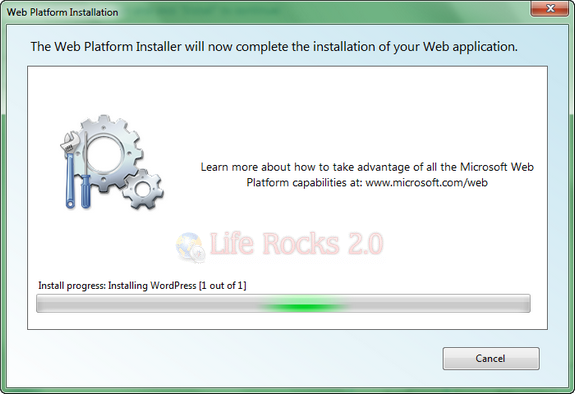
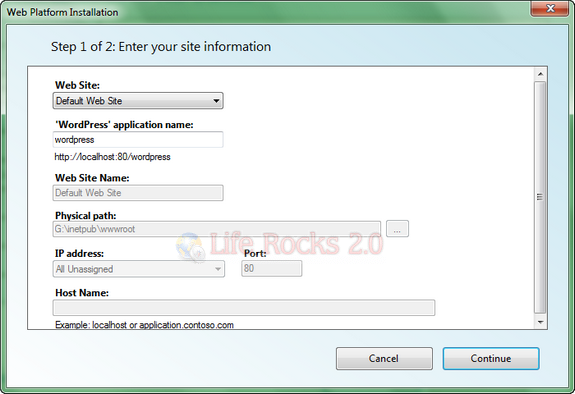
Once the installation is complete, you need to configure WordPress and MySQL by entering the username and password.
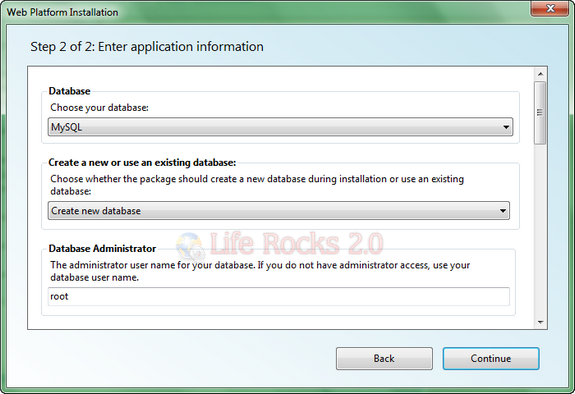
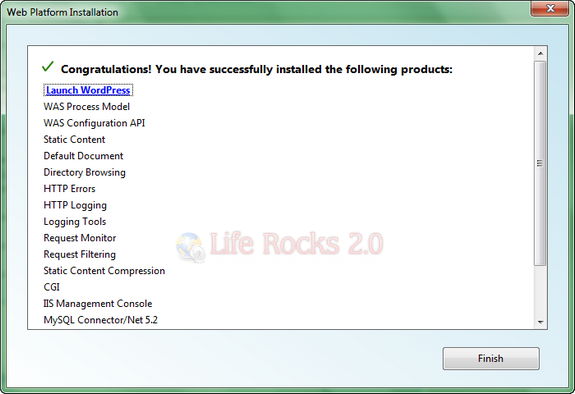
Once Web Platform Installer finishes the installation of WordPress, click on the Launch WordPress link and it will open WordPress installation in browser window. You need to enter a blog name and it generates the default user and password. You can login to your admin dashboard using the credentials.
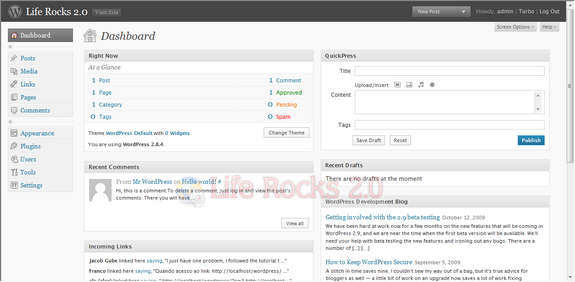
By default, you local login URL will be “http://localhost/wordpress/wp-login.php”. You can try out all the plugins and themes on this local installation before actually uploading to server.
This way of installing WordPress is much easier than installing XAMPP and then configuring MySQL and Apache.



OK good to see- informed blogs are always welcome! See yas.
A Very interesting input . Whenever i check your blog i see a different view. Furthermore , as a fresh developer, i should mention that the structure of your site is amazing . Could you post some information regarding the theme ? . I find it hard to choose among all these themes and widgets.
Thank you.
The good thing on the net is that i can find things that i do not know about but at the same time interesting.