

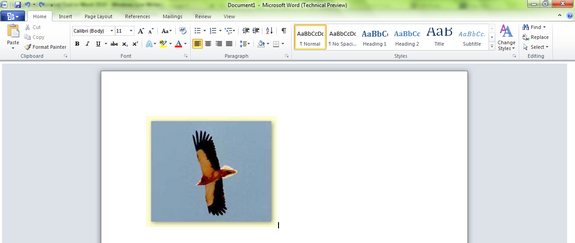
Word 2010 comes with lots of new features like Outlook 2010. We have discussed how you can take a screenshot in Word 2010 without any third party tools. Word 2010 has another great feature called Background Removal Tool which can help you remove the background of any image inside word without any photo editing tools. You can remove background from any image in Word 2010 just with few clicks. To start using this tool, first add the image to the Word using the Insert-> Picture option or drag and drop the image to Word.

Select the image in Word 2010 and you can see the picture tools menu getting activated. Select the Picture tools tab and in the ribbon, you can see Background Removal tool.
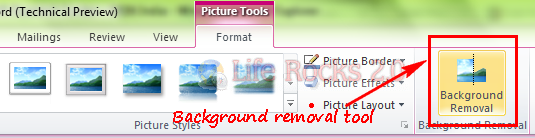
When you select this tool, you get some additional options where you can either select some areas to be removed or areas to be included after the tool is applied on to image.
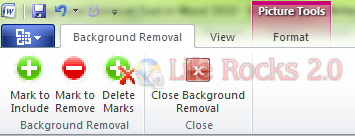
You can select areas which need to be included or removed using the Background removal tool options. Once you done with the selects, close the tool and you see the image without the background.
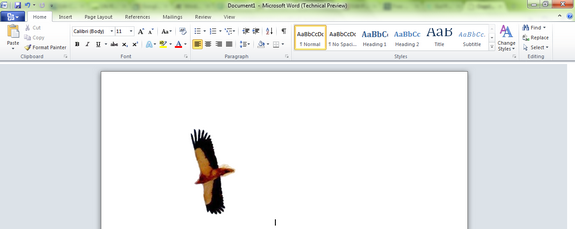
This tool is really useful for quick image editing and removing backgrounds from images.





hye nirmal,
nice article. is this available in word 2007?