

Windows Live Family Safety (FSS is a free product from Microsoft, for enabling parental controls in Windows and it comes with Windows Live Essentials Suite. Its features allows users to set guidelines and restrictions for children surfing on the internet and allows parents to monitor their children’s web activities. Now if you have installed all the programs while installing Windows Live, Family safety will be enabled and it might cause error while opening some sites as the default setting is basic mode.
If you do not want to remove Family safety, you can log into the online service and change the settings. But if you are the only user accessing the PC, these settings might be annoying. You can either disable Family safety or uninstall Family safety using the steps below.
1. Disable Family Safety– To disable family safety service and also to stop from start up items, Click Start=> Run and type services.msc and click enter. This opens up the services under in Windows. Here you can see and entry by name “Windows Live Family Safety” which is enabled by default and loads at start up.
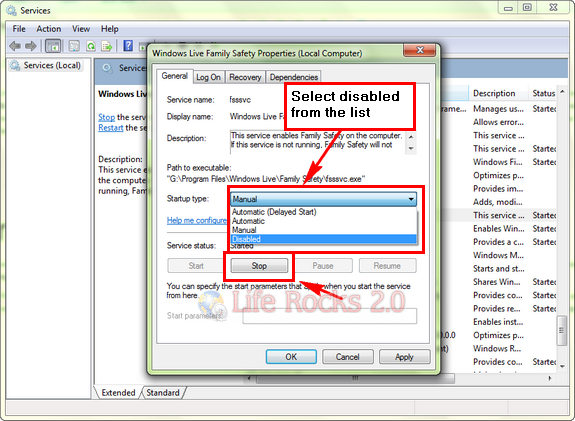
Select Startup Type as Disabled and also Stop the service in case it is already running. Click OK and apply the settings. This will disable Family safety unless you manually start the service.
2. Uninstall Family Safety: – If you are the only person using the PC, then it might make sense uninstalling the application which comes bundled with Windows Live Suite. Open Programs and Features (Control Panel=> All Control Panel Items => Programs and Features) and click on the Windows Live essentials and select Uninstall.
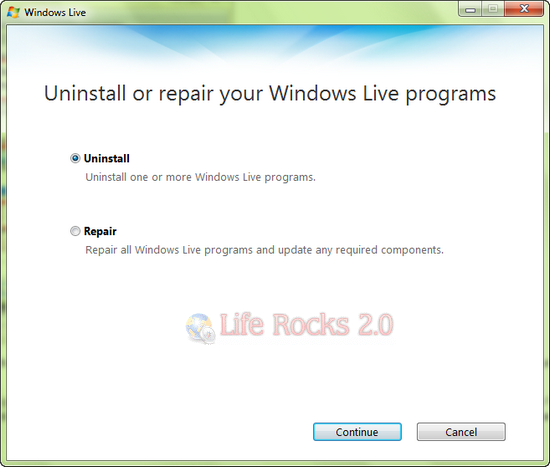
Click Continue and in the next Window, select Family Safety and then continue.
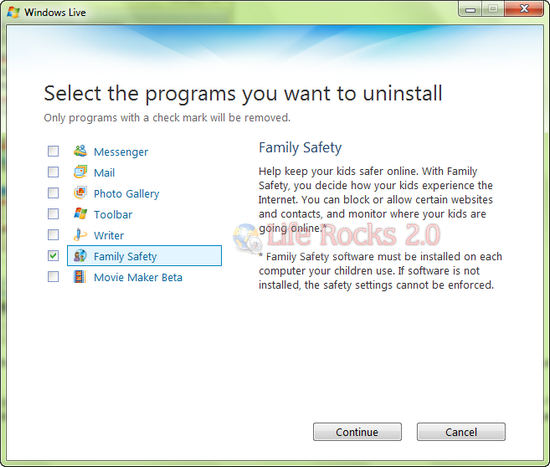
This will uninstall Family Safety from your computer.



Family Safety is a great idea and I applaud Microsoft for thinking of the Family…. However, as the sole user of my PC and not only that, being 40 and online longer than most IT/MS Techs have even been alive (slight exageration)
I do not want this on by default, if I need it, I will ask for it, having the software already installed and with the system is great, having it lock me out of things on the assumption I am 11 y/o is NOT great..
Bad Move Microsoft.
i have the problem that family safety blocks all antivir programms i want to install, so i’m only able to run the windows-antivir -.-
the next point is that the point ‘disable’ doest’n work, cause the programm isn’t listed up in the ‘services’!!
ad i still can’t install another antivir programm o_O
mt fucking dad restricted me from all downloads which is bullshit cause he never uses this
computer at all god dammit help I have a windows 8 laptop and I cant bypass family safetey
Your telling me bro My dad makes has control over EVERYTHING on my computer I keep telling him its fucking annoying and I wont play it after bed but he keeps saying the same dam thing ” There is bad stuff just one click away” And im like in my head WHO CARES I bet you he was allowed to watch porn and stuff (Not going to watch porn anyways)But really hes a computer geek and thinks hes clever when really hes a pain in the ass help anyone?
Sorry for bad punctuation and spelling im only 13 Also he has this thing on family safety where my computer turns off automatically like my bed time at the moment is 10 PM and he make my computer turn off at 7 pm and im like in a middle of minecraft building and BAM bye bye 2 hours of hard work ITS SOOO GAY I CAN EVEN WATCH YOU TUBE! That’s how gay my dad is everyone Also heres a list of things that are automaticly blocked (Im 13 by the way).You tube
. Facebook
twitter
A game called ROBLOX (says it uses to much broad ban)
an praticly any other site with lots of peps on it
he wont let me go multy player on minecraft that’s how shit he is.
Please reply and give me advice on how to tell my dad to TURN THIS STUPID PIECE OF CRAP OFF!
i get blocked out of everything on my pc, u can go into services and disable ‘Microsoft Family Safety’ I am 13 and I get time restrictions on my pc, but this disables that, I also have website, download, and my dad can even view what i’ve been on, what ive downloaded, and what game ive even played, say i was playing roblox, 7 rated game, and he has a assumption its 16 rated, and blocks it from me, i can not delete family safety aswell. if u think ur family safety is bad, my dad brings it to the next level…