

If you are planning to install Windows 7, you can always do that using the DVD, but it is also useful to carry a bootable USB drive in case you need to install it on a PC where you don’t have a DVD drive or not having access to it. Bootable USB is a free application which allows you to create a bootable drive to install Window 7, Windows Vista and Windows Server 2008. This simple tool can easily create a bootable drive for installing Windows 7.
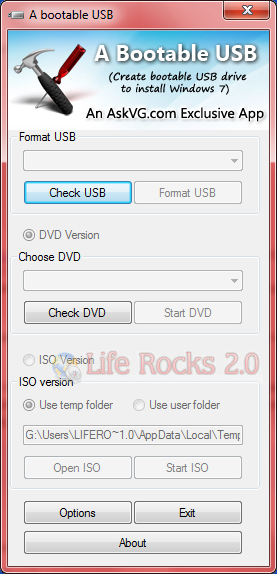
The utility is very simple to use and you will need a 4GB USB drive, the ISO image of the OS (Windows 7 or Vista or Server 2008) and the application should be run on Vista or Windows 7 or Server 2008. The utility has 4 steps to create the bootable USB;
- Check USB drive to see if its connected
- Format USB drive
- Choose DVD or ISO image (To copy the required files to USB drive)
- Start the process to create bootable USB drive
Bootable USB is a very useful utility which comes handy for the installation of Windows 7.




nice one….thanksji…!!
Thanks for posting. 🙂
Hi Nirmal cheta! Your story is actually amazing… I have a doubt… is it legal to create an unattended CD/DVD of Windows for personal use?
Seems you need Vista or higher, just to run this program 🙁
@Addy,
Yes, you will need Vista, Win 7 or Server 2008 to run this application.
Thanks for posting!
I’ve used a less integrated method by blogsdna for my Windows 7 install (coming from XP).
I guess I’ll be using this now to do 7 upgrades!
Thanks nirmal, will check it
Thanks for this awesome app. Till now I was using the manual way.