

Windows Live Hotmail has introduced a new feature by which customers in the US, Canada, and Brazil (already available to UK, France, Netherlands, Italy, Spain, Japan, and Germany) can now add other email accounts to Hotmail. You do not have to check in all the email accounts, instead all the emails will be delivered right inside your Hotmail using POP3. This feature can be used to get mails from POP-enabled account (including Yahoo! Mail (Plus), AOL Mail, and Gmail).
You can set this up in Hotmail in three simple steps:
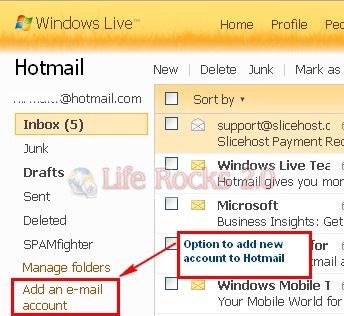
1. Open your Hotmail account and in the left hand sidebar, you can see an option “Add an e-mail account”
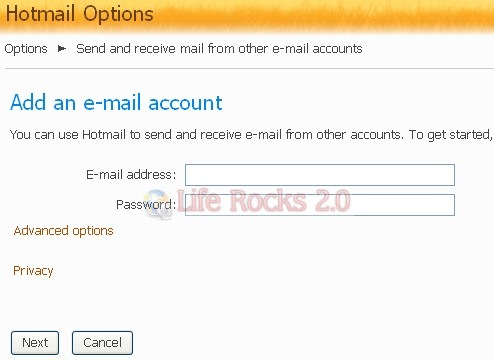
2. Next step is to enter the email details (user name and password). There is also advanced set up for POP3 settings.
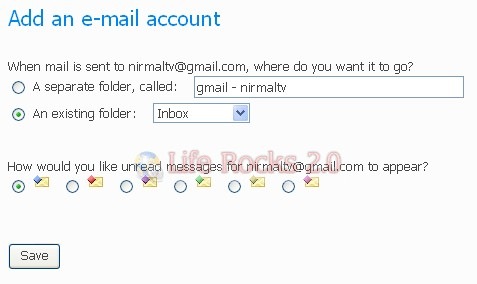
3. Once you have entered the settings and login credentials, you can also set preferences for mails coming from this ID. You can move this to new folder and also assign flags.
This is a good move by Hotmail team and now you can start reading all your emails from POP3 enabled accounts in Hotmail.



Good tip, I was really fed-up checking all different accounts, this will help. Thanks.
Thanks for the update. Will check this out.