
Advertisements

Some softwares and games might be build for Windows XP and might crash when executed in Vista. If softwares are crashing in Vista, you can fix it with a simple and quick solution. To run programs having compatibility issues in Vista, turn on the compatibility Mode. With compatibility mode, you can run the program or game in the settings for which it was actually designed.

To run any program or game in compatibility mode, right click on the executable file or the start menu item for this program and then select Properties. In the properties Window, select the Compatibility tab.
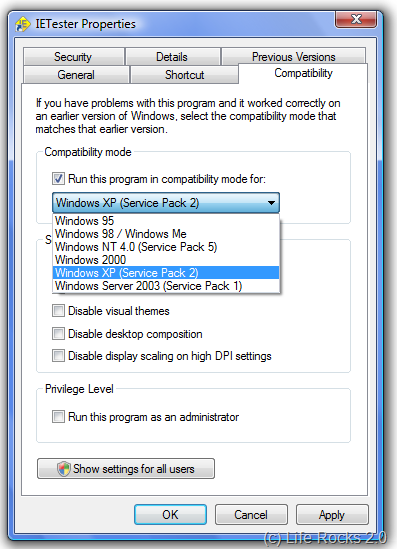
Compatibility mode

Here check the box against “Run this Program in compatibility mode for” and then select the Operating system for which it was initially designed. Click apply and now your program would work in Vista using the compatibility settings for its originally intended OS.

In most of the times, this fix would work, but there could be some cases where the program is too old or outdated.


8 Responses to “How to Make Old Softwares and Games Work in Vista”

  1. Art Gonzalez says:

    Thanks for the tip! I was having trouble running KOTOR on Vista and this solved the situation.

    Many blessings,

    Art Gonzalez
    Check my Squidoo Lens at: Quantum Knights

  2. Yeah, unfortunately, I have yet to see this work. I tried to get the last version of Compuserve to work on Vista, but could not with this fix. I’m sure it has worked in the past though.

  3. Avinash says:

    Nirmal, the same option is also available in XP, for using programs available for earlier versions of Windows.Really helpful option and can be accessed similar to Vista as you mentioned.

  4. [...] A questo punto, selezionate il sistema operativo per il quale il programma è stato creato. Se non sapete quale scegliere, provate ad oltranza. Applicate e riprovate a lanciare l’applicazione. Questo trucco funziona nella maggior parte dei casi, ma potrebbe rivelarsi inutile se il programma è troppo datato. Via | LifeRocks [...]

  5. Nirmal says:

    @Avinash,
    Yea its available in XP as well, you can make programs intended for Windows 98 work in XP the same way.

  6. [...] Iscriviti al FEED di TechUniverse Links /* visitatori Barra di Navigazione « Utenti di Firefox al sicuro dal clickjacking grazie a NoScript   Articolo Come avviare vecchi programmi e applicazioni in Windows Vista Ci sono molti software risalenti a qualche anno fa, e sviluppati nativamente per sistemi operativi precedenti, che potrebbero creare dei problemi se eseguiti su Windows Vista. Alcuni di questi crashano o si bloccano durante l’esecuzione, altri invece non si installano neppure. Come fare a risolvere questo tipo di problemi? Il più delle volte basta utilizzare la “modalità compatibilità” integrata in Windows Vista, così da eseguire l’applicazione con le impostazioni per cui era stata originariamente sviluppata. Utilizzarla è molto semplice. Cliccate con il tasto destro sull’eseguibile che volete lanciare (o sul suo collegamento) e selezionate proprietà. Da quella schermata passate al Tab “Compatibilità” e spuntate la prima casella “Esegui il programma in modalità compatibilità per“. A questo punto, selezionate il sistema operativo per il quale il programma è stato creato. Se non sapete quale scegliere, provate ad oltranza. Applicate e riprovate a lanciare l’applicazione. Questo trucco funziona nella maggior parte dei casi, ma potrebbe rivelarsi inutile se il programma è troppo datato. Via | LifeRocks [...]

  7. [...] This link is valuable to those having trouble running programs in Vista that had no problem in XP or earlier Windows OS’es. I founf it over at Nirmaltv.com [...]

  8. [...] making it compatible with previous version of Windows it was designed for. More details available here. Stumble | Digg This | Technorati Favorite | Subscribe to this Blog | Add to [...]

Leave a Reply
