

In previous versions of Office, to make a document read only, you need to right click, select properties and make the document read only. But Office 2007 has a built in feature inside word to make the document read only. The advantage of using the feature is that once the document is made read only, ribbon features are also disabled. To make a document read only, click on the office button on the top left corner and select Prepare. Inside prepare menu, you will be able to see the option, Mark as Final.
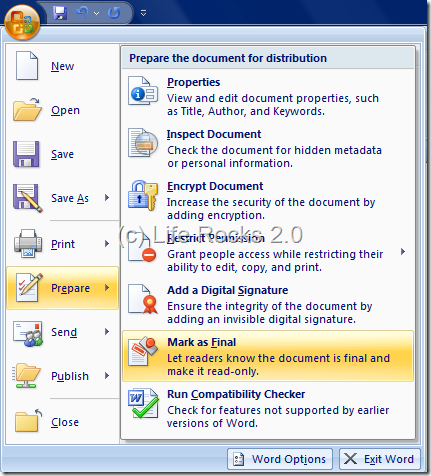
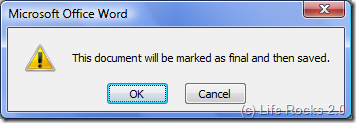
Once you select the option, you get a pop up confirming that the document will be saved and made read only.
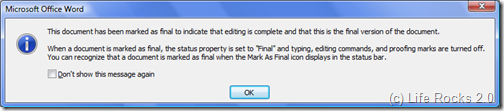
Once the document is made final, you get a message that status property is set to final and typing and editing commands are turned off.
Now you can see that the ribbon features will be disabled and document cannot be edited, if you want to bring back the document to write mode, select Mark as Final option once again from the prepare menu.





Nice Tip…
Was Not Knowing About This…
– Anurag R.C.
http://www.pcdrome.com
Latest Post:
http://www.pcdrome.com/2008/09/use-memokeys-and-save-your-time/
it’s not so helpful
because you still can mark all words and press Ctr+C (Copy) and Ctr+V (Paste) any where you want to edit the file
hope you can give me another solid way of protection
thanks 🙂
its good but not the best.
Because anyone can click on “Mark as Final” again and edit the document..
I think protect will work better to restrict from modifying the document.
thanks so helpful!!
Hi~
I understand how to protect my document so that people can’t change the content; however, I have some forms that I would like the information to be typed by the user. Is there a way I can do this?
So not what I needed! How can one get pdf results from a Microsoft document?
@ Donna: you need another program to do what you want, like nitro word to pdf converter. It is not free. However, there are websites that offer free conversion as long as it does not exceed their limit.
You can use “CZ Document Converter”, it can batch make read-only word files, more information from http://www.convertzone.com/document_converter/help.htm
thanks
Then..If we want to make the read only document to be edited means what should we do?