How to Turn Off E-Mail Notifications in Outlook 2007

Advertisements

Outlook has the feature of Email notification whenever a new mail arrives in your mailbox. Because an e-mail notification icon appears whenever you receive new e-mail, it’s tempting to stop work and open new messages immediately. But you can turn off the notification and then check your e-mail when it’s convenient for you.

To Turn off email notification, follow the steps;

1. Open Office Outlook 2007, select Tools menu and click Options.
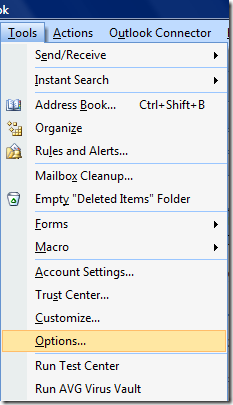
Outlook Tools

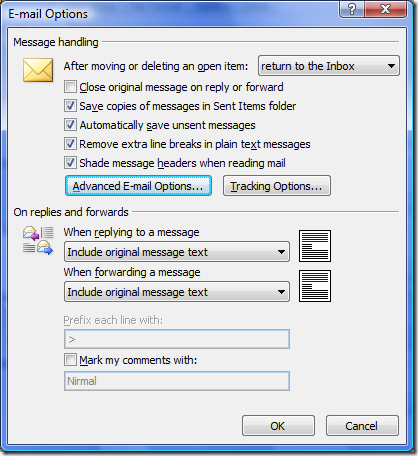
2. click E-mail Options, and then click Advanced E-mail Options.
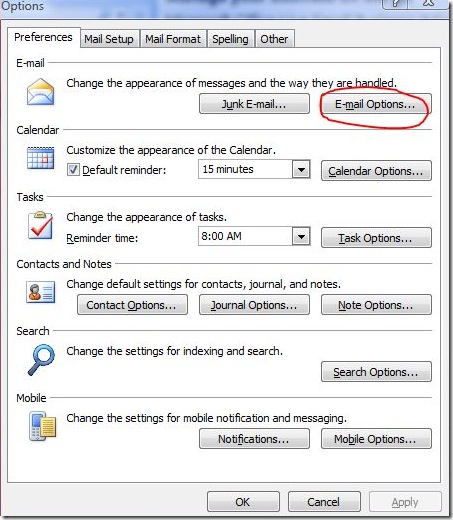
Capture

Outlook Advanced Options

3. Uncheck the Display a New Mail Desktop Alert check box to stop receiving email alerts.
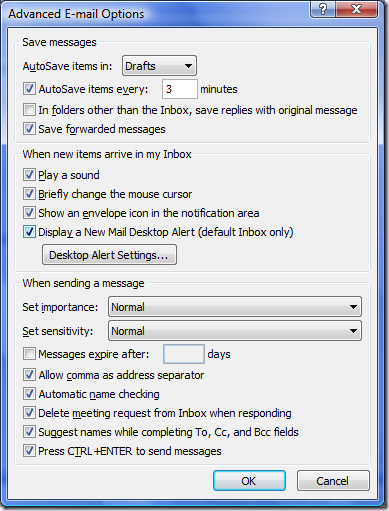
Outlook Email Options

Now on, you wont be receiving any email notifications when new mail arrives.


Tags: , ,
 

Share this Post

stumbleupon-48�48.png digg-48�48.png technorati-48�48.png feeds-48�48.png delicious-48�48.png


Add a comment

Translate Page

Translate to EnglishÜbersetzen Sie zum Deutsch/GermanПереведите к русскому/RussianΜεταφράστε στα ελληνικά/GreekVertaal aan het Nederlands/Dutchترجمة الى العربية/Arabic中文翻译/Chinese Traditional
中文翻译/Chinese Simplified한국어에게 번역하십시오/Korean日本語に翻訳しなさい /JapaneseTraduza ao Português/PortugueseTraduca ad Italiano/ItalianTraduisez au Français/FrenchTraduzca al Español/Spanish
Nirmal is a Software Engineer and Technology Blogger. He is a Microsoft Most Valuable Professional in Windows Desktop Experience.
mvp   India Technology Bloggers  

More Articles

Sony Ericsson Phone releases and reviews
Top Tutorials
Freeware for Windows XP/Vista
Personal Blog
India Blog
The Mobile Blog