

When Windows is switched to hibernation mode, Windows saves the current state into a file called hiberfil.sys. This files size is very huge and will extend to several GB. In case you are not using hibernation, you can disable it to save hard disk space. To disable hibernation, open Start-> All Programs-> Accessories-> Command Prompt. Right click and select Run as Administrator in case you are not logged in as admin account.
In the command prompt type “powercfg.exe –h off” to turn off hibernation (without quotes).
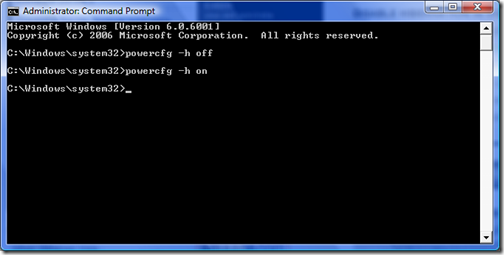
In case you want to enable hibernation, type “powercfg.exe –h on” in the command prompt.




quick and easy
Nice 🙂 Thx.. really wanted to save the space huberfll was taking.. didnt know how to 😀
thanks alot…..i was searching the how to hibernate my laptop using vista…..i got it…
thanks
Thanks a lot.. Very useful.. ^_^