

Firefox by default has a spell checker which underlines the misspelled words using a red line. This spell check is available only for text areas and not for text input fields like title for WordPress blog post or a subject line for an e-mail etc. But you can enable spell check for text input fields as well. To do this, type about:config in address bar and press enter. Click on the button “I’ll be Careful, I promise”. In the filter field in the config file type layout.spellcheckDefault.
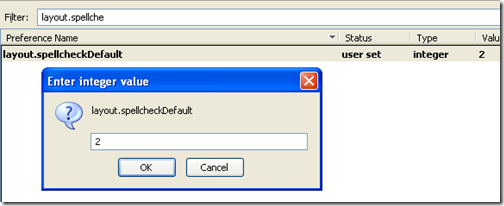
The default value is 1, double click the entry and change the value to 2. click ok and close. You need to restart Firefox to see spell check enabled.
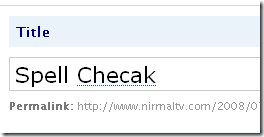
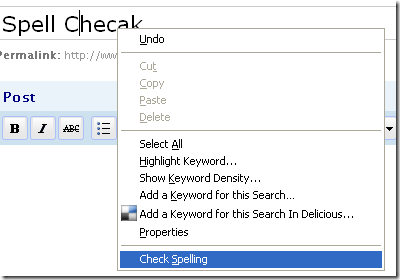
If spell check is still not enabled for input fields, then right click on the word and select Check Spelling option.
This tip will also work in Firefox 2.





nice tip
That was cool…
Thanks Nirmal
Thanks for the tip – I have changed my setting.
Thanks so much!
Got it to work, but had to load the dictionary first!!
Thanks again!
that worked great thanks
Thank’s.
If you need to spell check your blog use spell check widget on http://www.spellchecker.net/widget/ or just simply check your text in.