

Backing up files and folders is a very important task as this can save your data in the event of a system crash or failure. Windows Vista has a similar backup utility like Windows XP. To back up your data, open Control Panel and select “Back up your computer” under the System an Maintenance menu.

This will take you to Back up and Restore Center, here click on Backup Files button.

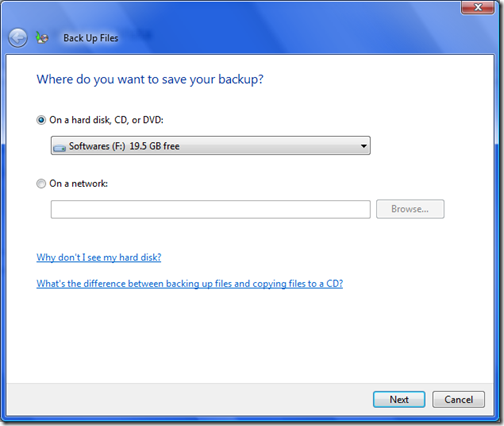
Next step you have to select the place where you are going to back up data, it can be hard disk, CD/DVD or to a network.
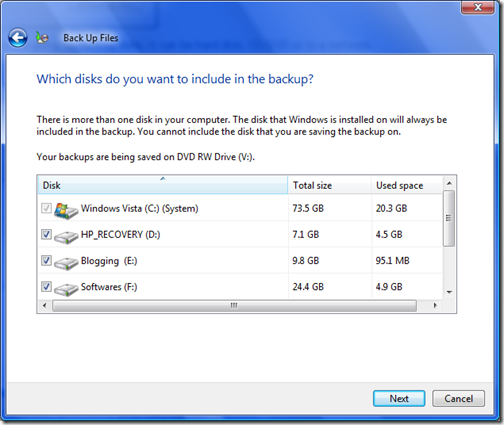
Now select the drive you want to take back up, by default all drives on your hard disk are selected.
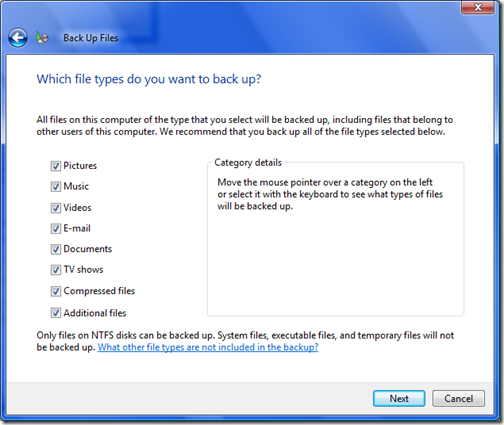
Select the type of files you want to back up like pictures, emails, documents, videos etc.
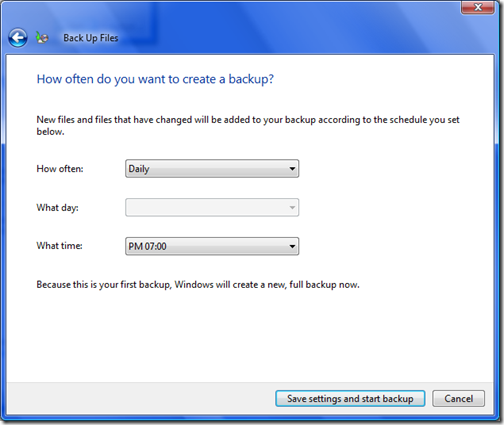
Next step is to schedule the back up. You can select Daily, Weekly or monthly and also select the time.
If you have select back up to DVD or CD and the DVD is full, then backup will continue once you insert the next blank disc. You can check the back up settings in the back up and restore center.
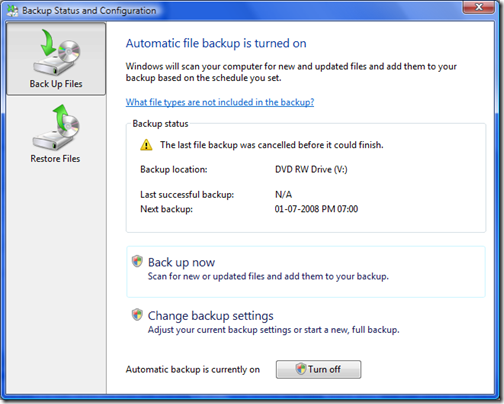
You can restore files the same way from the Restore Files menu.




never used this feature of firefox…if required this post will come handy
How’s it going Nirmal? Hadn’t seen you in a while. 🙂 Unfortunately, I still use Windows XP, so I can’t do the same… can I?
@Abhishek,
Did you mean Firefox or Vista?
@Grace,
Indeed its been a long time, I thought you had stopped blogging.
Thia feature is available in Window XP as well.
i find this is just like backup in windows live one care
Great tutorial. This backup process is really great when you have Vista Ultimate.
So how do I actualy backup a specific folder?
Title on page is wrong should be “back up stuff” because you cant deside precise what to backup.
Possibly because I only have Vista home basic, I don’t get the option of scheduling regular backups. I can only do it manually. And I agree with the previous comment, how do you backup individual files and folders? I have one important folder that I change regularly. I need to back this up weekly, sometimes more. To do this manually by just copying new and edited files to my external hard-drive would be a nightmare. How can I back up just this entire folder?