

Whenever you compose posts for your blogs, you will need pictures to illustrate it and the most common method of taking screenshot is the ALT + Print screen command. There are many freewares to do the job. Vista has an in-build snipping tool to take screen shots. This feature in Vista might be turned off in some PC and Laptops, but you can activate it to take screen shots.
This program belongs to the tablet PC functions of Vista. You will need Administrator rights to enable this feature. Open Control Panel and select ‘Programs’ and ‘Program and Features’.

Click on ‘Turn Windows functions on or off’ and you can see various setting which can be turned on or off. Now select the check box beside Tablet PC optional Components.
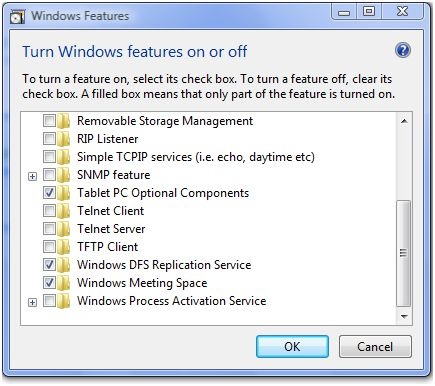
To Open this tool, click start menu and type snipping and press enter. When this is opened for first time, it will ask you whether it should add the tool in the quick start.
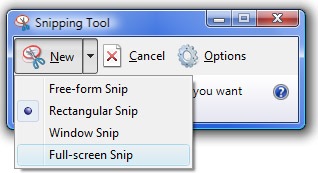
This tool has pretty good options as well, it offers free form, rectangular, Windows and full screen snip. There is also provision to select the background color. Once you snip the screenshot you can save it in graphic formats like JPEG.
This utility is available only in Vista Home Premium and Ultimate versions.



Cool tip, thanks Nirmal. One issue, for some reason your pictures are not showing up in my RSS feed. Not sure if it’s a problem on my end or yours, but I can see pictures from other sites…just to let you know.
@Aseem,
Thanks for letting me know about the issue, I’ll check it.
Yup screen capture is something that Microsoft has never built into the OS and even snipping tool is made available only to Premium and Ultimate customers..
Its a nice tool, but image editing capabilities are quite limited and so are the upload options..
Which tool do you use to capture images ?
@Venu,
Generally I use ALT + Print screen and then edit in Photoshop. Now I have started using this Vista tool.
Then I would definitely suggest you to use Jing. It can upload to your ftp server as well and should save a lot of time.
@venu,
I’ll try it.
Nice info but….
This tool is available in windows Vista Business edition too.
I have been using this tool since last several months in Vista business edition with Service pack 1. Please update your article after verifying my claim, for the benefits of the readers.
regards
Techfreak2008
http://techfreakindia.blogspot.com
Nice share.
But Nirmal, I have found that SnagIt is probably the best of them all, with its built it photo editor. I am using SnagIt 8, for quite some time now.
Snagit is not a Free , $30 tool.
Paid software like Snagit ,Camtasia Studio should be used only when you really have a “dieing need “for it.
In built Snipping Tool is good for those small tasks where you can do away with dedicated screen capture utilities.
http://techfreakindia.blogspot.com
Hi Nirmal! I use this two apps to take screenshots:
– Screen Grab 1.1 (http://no-nonsense-software.com/cgi-bin/redirect/cgirdir.exe?screengrab)
– Simply Capture 1.3 (http://dpi.hypermart.net/scapture.htm)
This apps are freeware,and easy to use.
Greatings from Hungary
YAY THANKS SO MUCH!!! Life Saver!!!!!
i followed you through everything until whenever the options come up with the check boxes beside them there is no Tablet PC optional Components. all the options in your picture is there on mine except that option. idk why but please help me i really need these screenshots.
Thank u a lot
i followed you through everything until whenever the options come up with the check boxes beside them there is no Tablet PC optional Components. all the options in your picture is there on mine except that option. idk why but please help me i really need these screenshots.