

There may be many instances where you would want to delete all the contents inside the folder, but wanted to maintain the folder structure as such. By default Windows does not provide any such option. If there are lots of folders inside a particular folder maintaining a folder structure, then its difficult to delete contents from all the folders. This task can be done using a registry entry.
To do this go to Start-> Run and type ‘regedit‘. In the registry, navigate to HKEY_CLASSES_ROOT\Directory\Shell key. Right click on ‘Shell’ and then create the ‘Empty folder Contents‘ sub key with the New|Key. then create the command key in the same way. Open ‘Default‘ by right clicking on it in the right hand side window. and fill it with the following entry- ‘cmd /c “cd /d %1 && del /s /f /q *.*.
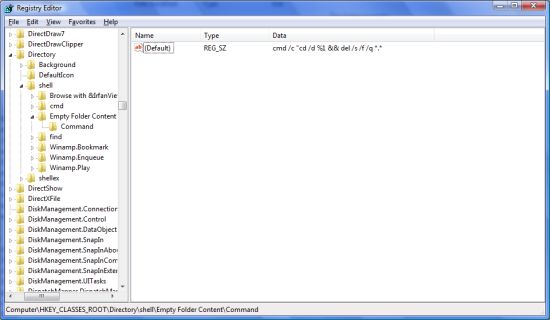
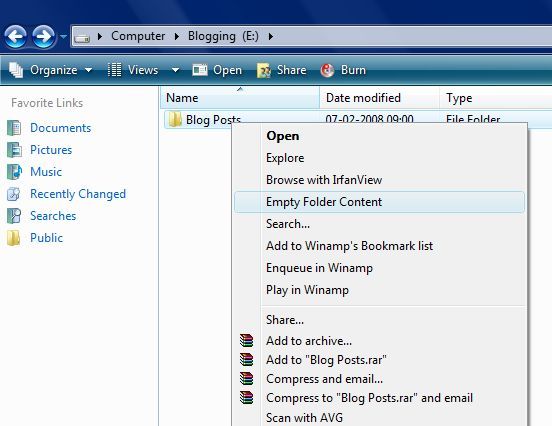
Once you close the registry, the new command will appear in the right click menu of the folder. Now whenever you want to delete the contents, select “Empty Folder Contents” and only the contents will be deleted, the folder structure will remain intact.
NB: Please back up your registry before making any changes.








Nice tip. Keep that coming.
🙂
@Rakshit,
Sure! More tips on the way. 🙂
Nice tip Nirmal. But you have to put the “warning” notes near the top before someone messed up their registry.
Great tip buddy. Will save everybody a lot of time.
Nice tip Nirmal thanks
Very cool tip I have not heard about it before 😉
Nirmal, I’ve tried it on XP and its not working, Did anyone get this working.
@Syahid,
You are right, the warning should be at the top. I forgot that, thanks for that correction. 🙂
@Venkat,
I have tried this on Vista and it was working fine, please make sure that you have entered the value with the correct number of spaces.
This is one good thing I was looking for after sendto option. Thanks nirmal, I will link you for sure in the next speed linking
@Ashish,
Glad that you liked the tip.
verkat,
The following Key data works on WinXP SP2:
cmd /c cd /d %1 && del /s /f /q *.*
Thanks Martin! I couldn’t get it to work!!
I brought a new pen drive and transferred all the data from my old pen drive by
1. Making a folder called in the new one and then
2. Copying everything from the old pen drive into it. (At that time, I needed to keep thee contents from my old drive separately for sorting purposes).
Now, I want to delete the folder called without losing any of the data or folders inside it (in other words, I want all contents of the folder called to become part of the root directory of the new pen drive.
I know that I can simply copy and paste, but just wanted to know whether there is a way to ‘promote’ folder contents?
Thanx
vinod
Sorry, but it is showing this error message
” This file does not have a program associated with it for performing this action. Create an association in the Folder Options control panel”
i want to learn such things more pls help
Hello Vinod even i want to achieve that
Is there a way of restoring the deleted content back?
Niramal, how to enable a warning prompt message before the contents get deleted?